screensnap
screensnap is a free, open-source screen recorder and screenshot tool for Chrome. It records a tab, window, or your whole screen, captures screenshots, and edits them in a built-in timeline editor — trim, crop, zoom, annotate and export to MP4 or GIF, entirely on your own machine.
Free and open source. Read the privacy policy and terms of service.
The real editor, step by step: trim · split · undo · zoom · crop · annotate · export. Everything shown runs on-device.
A timeline that makes sense. A crop you can actually grab.
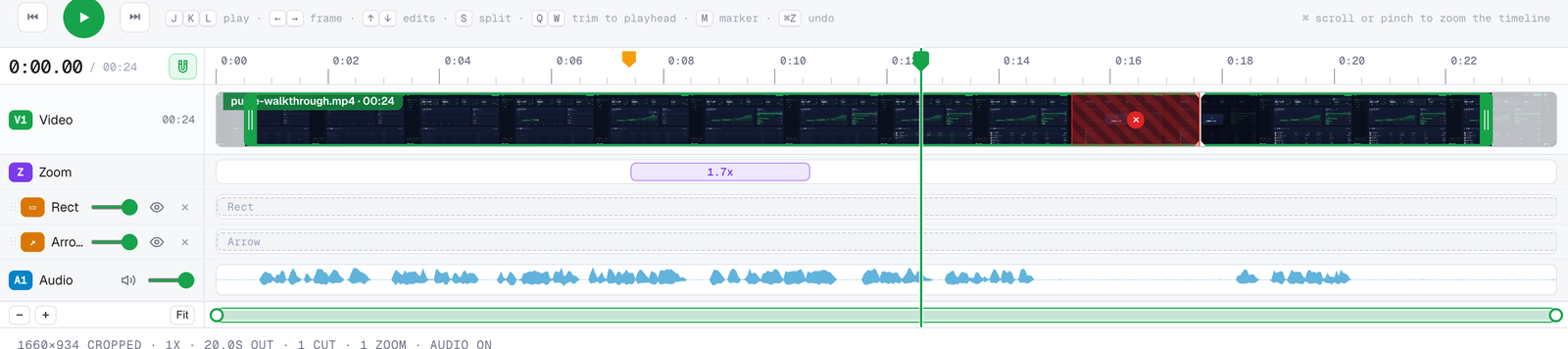
Your clip, as a clip
A strip of frames across the video shows you where to cut, and what you trim away fades out. Colour-coded tracks, a big timecode, a flag playhead you can drag, snapping you can switch off, and a bar under it all that pans and zooms the timeline.
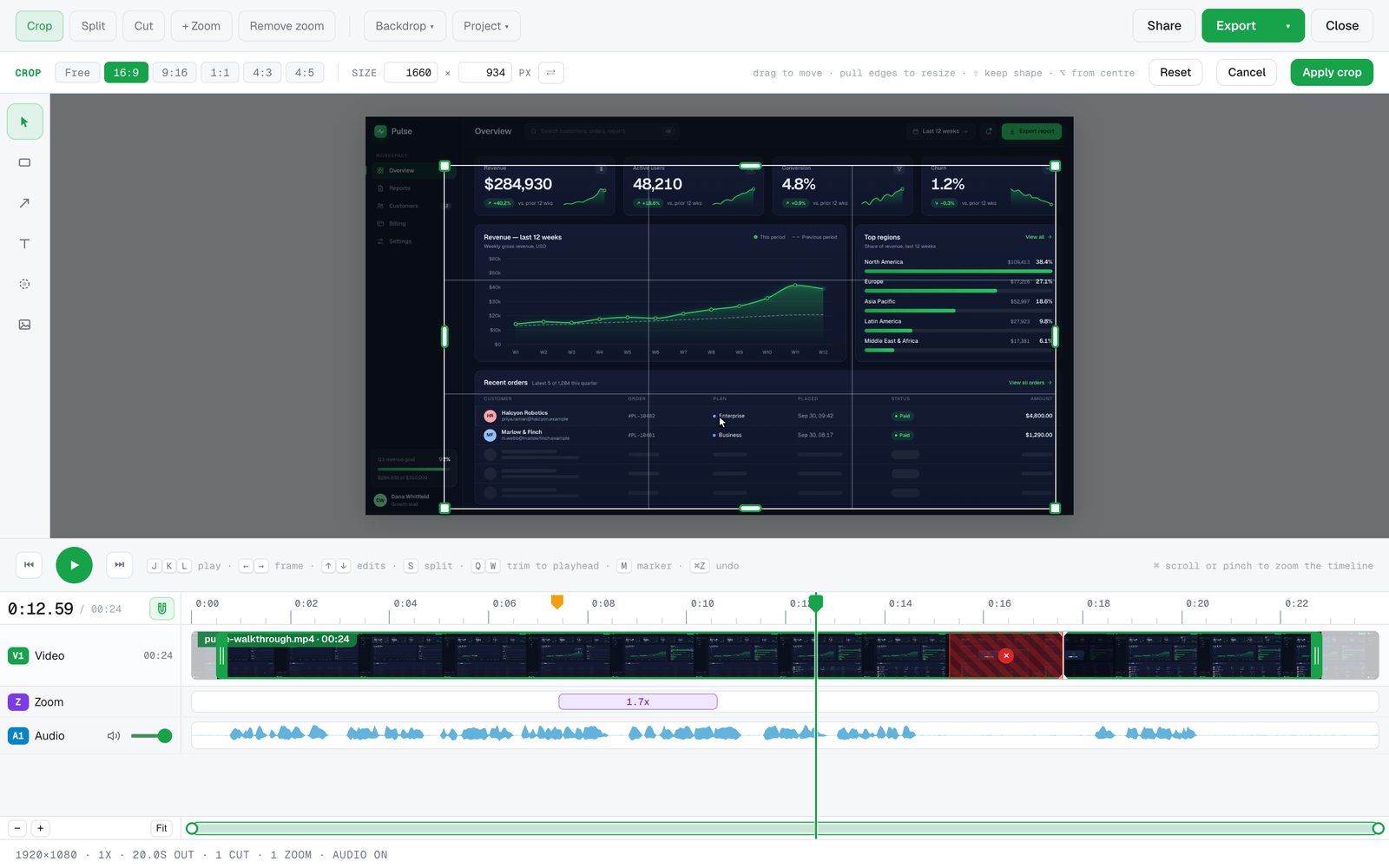
Crop with real handles
Drag the box to move it, pull any of its eight handles to resize, lock 16:9, 9:16, 1:1, 4:3 or 4:5, or type an exact size. It shows the whole frame while you work, so you can grow a crop back out later instead of starting over.
Capture and edit in one place — and it never phones home.
Record anything
Current tab, a whole screen, or any app window, with your webcam in a floating bubble if you like. Pick Small, Standard or High quality: Standard (1080p) is about 15 MB a minute, so clips stay easy to share.
Screenshots & annotate
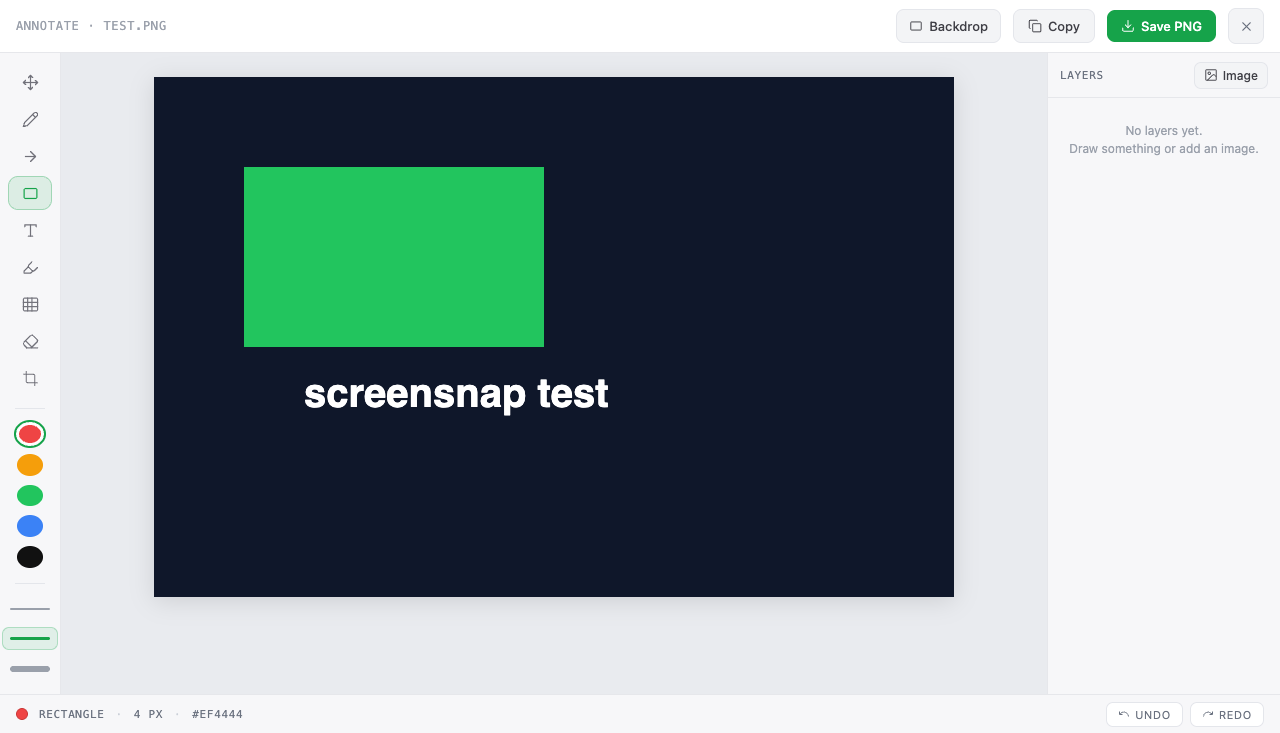
Visible-area or full-page capture (even web apps like Gmail that scroll inside a panel), then arrows, text, numbered steps, spotlight, blur/redact and crop. Everything you place can be moved and resized right away — saved as a clean PNG.
A real video editor
A real timeline: your clip as a filmstrip, colour-coded tracks and snapping. Trim, cut, crop with a handle box and zoom, add time-scoped text / arrow / image / GIF overlays, mute audio regions or add a voiceover — live preview.
Beautify & zoom
Wrap a clip in a gradient backdrop with rounded corners and a soft shadow, then zoom in with draggable, resizable focus blocks.
Export your way
Save the original instantly, or export an edited native MP4 (720p / 1080p presets that genuinely shrink files) or an animated GIF — all encoded on your device. Or share a link that plays it from your own Google Drive.
Private by design
No screensnap servers, no telemetry, no analytics. Captures stay on your machine; the only network traffic is the optional backup and share links you can turn on with your own Google Drive. Free and open source (GPL-3.0).
Capture → edit → export
Capture
Pick a screenshot or a recording source. A finished recording opens straight in the editor.
Edit
Trim, cut, crop and zoom on a multi-track timeline, mute or mix in audio, add a backdrop, annotations, logos or a looping GIF.
Export
Download a native MP4 or an animated GIF — encoded locally, watermark-free — or send a share link that streams it from your own Drive.
The purpose of this app, in plain words.
screensnap is a free, open-source Chrome extension for screen recording and screenshots. It records a browser tab, an app window, or your whole screen, with optional webcam and microphone, and captures visible-area or full-page screenshots. A built-in timeline editor then lets you trim, cut, crop, zoom, annotate, and mix audio, and exports a native MP4 or an animated GIF. All capture, editing, and encoding happen on your own computer.
Optionally, you can connect your own Google Drive and screensnap will back up recordings to it, and, for any recording you pick, make a share link that plays it from your Drive. This is off by default, you turn it on inside the extension, and it is the only thing screensnap ever uses the internet for.
What it can touch
With your consent, screensnap uses Google's narrowest Drive scope (drive.file): it can create files in your Drive and see only the files it created itself. It cannot read, browse, or change anything else in your Drive, and it never sees your Google password.
How it is used
Recordings you choose to upload (or every finished recording, if you enable auto-upload) go from your browser straight to a private screensnap folder in your Drive. There are no screensnap servers and no middleman: we never receive, store, analyze, sell, or share your files or your Google data. screensnap's use of information received from Google APIs adheres to the Google API Services User Data Policy, including the Limited Use requirements.
You stay in charge
Connect and disconnect in the extension's Cloud setup window. Disconnecting revokes screensnap's access at Google, and you can also revoke it anytime at myaccount.google.com/permissions. Uploaded files are private to your account and stay in your Drive, unless you choose Get share link for a recording, which makes that one file viewable by anyone with the link (you can switch it off in Drive). Details in the privacy policy.